AI Detection
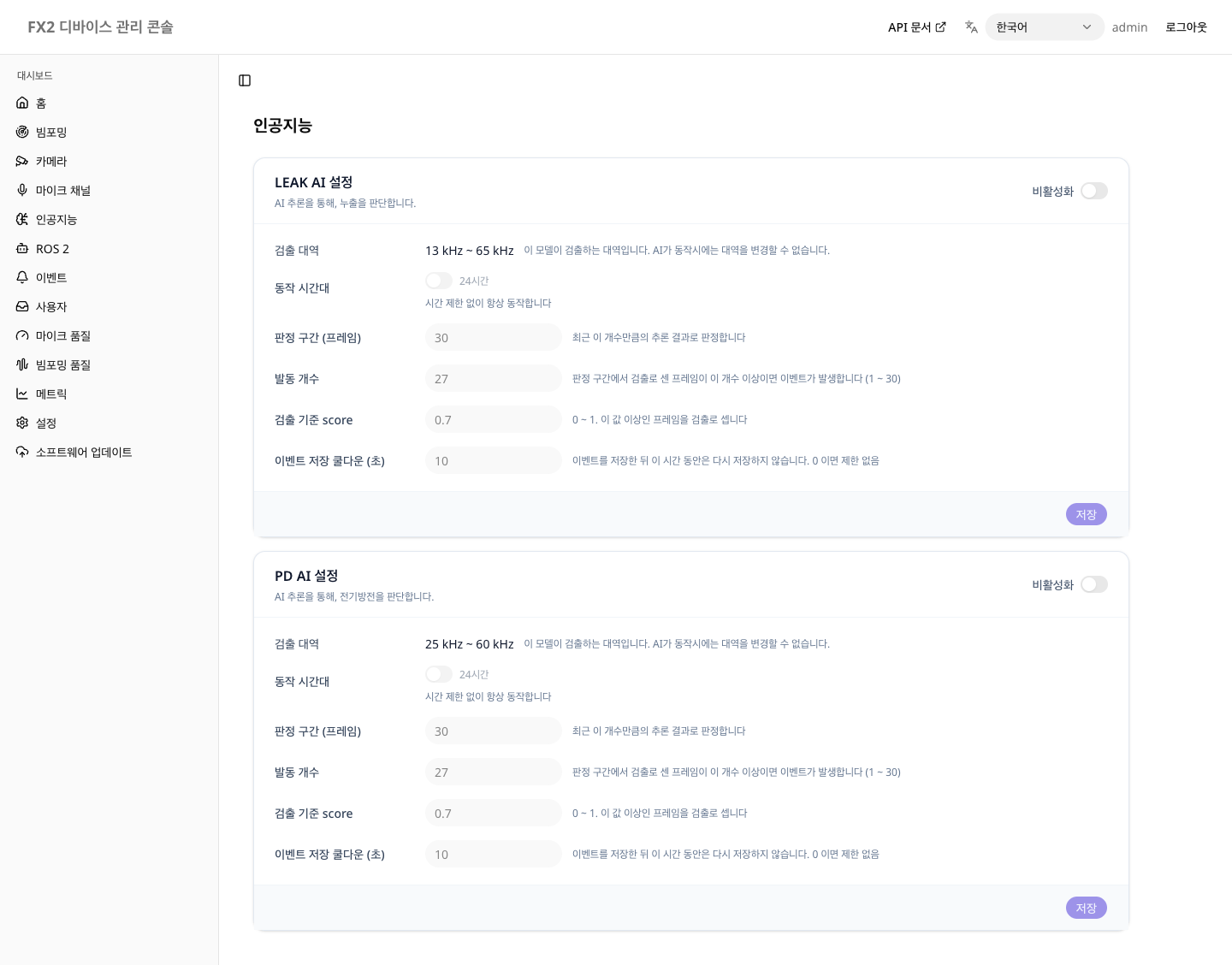
BATCAM FX2 runs AI models on the device to detect compressed-air and gas leaks and electrical partial discharge. This page explains how to turn on the models, change the detection criteria, and set when AI runs.
The settings are in the AI menu. The same settings are also at the bottom of the Events → Trigger Conditions tab. Changes made in either location save the same values.
AI Models
The device has two AI models. Both run on the device.
- Leak AI (LEAK AI) — detects compressed-air and gas leaks. Its screen is called “LEAK AI Settings.”
- Partial Discharge AI (PD AI) — detects electrical partial discharge and classifies it as Corona, Floating, or Surface. Its screen is called “PD AI Settings.”
Both models make detections using sound received from three listening points.
Turning Models On and Off
Each model card has an “Enable” switch in the upper right. Turning it on saves the change immediately. You do not need to press “Save.”
Both models are off by default when shipped.
Pre-release software (v1.1.1-beta.1)
This information is based on firmware v1.1.1-beta.1 and may change in the official release.
“PD AI Settings” appears as “Partial Discharge AI Settings.” The model-switching dialog says, for example, “Turn off LEAK AI and turn on Partial Discharge AI?” The save-failure message is “Failed to save Partial Discharge AI settings.”
Only One Model Can Be On at a Time
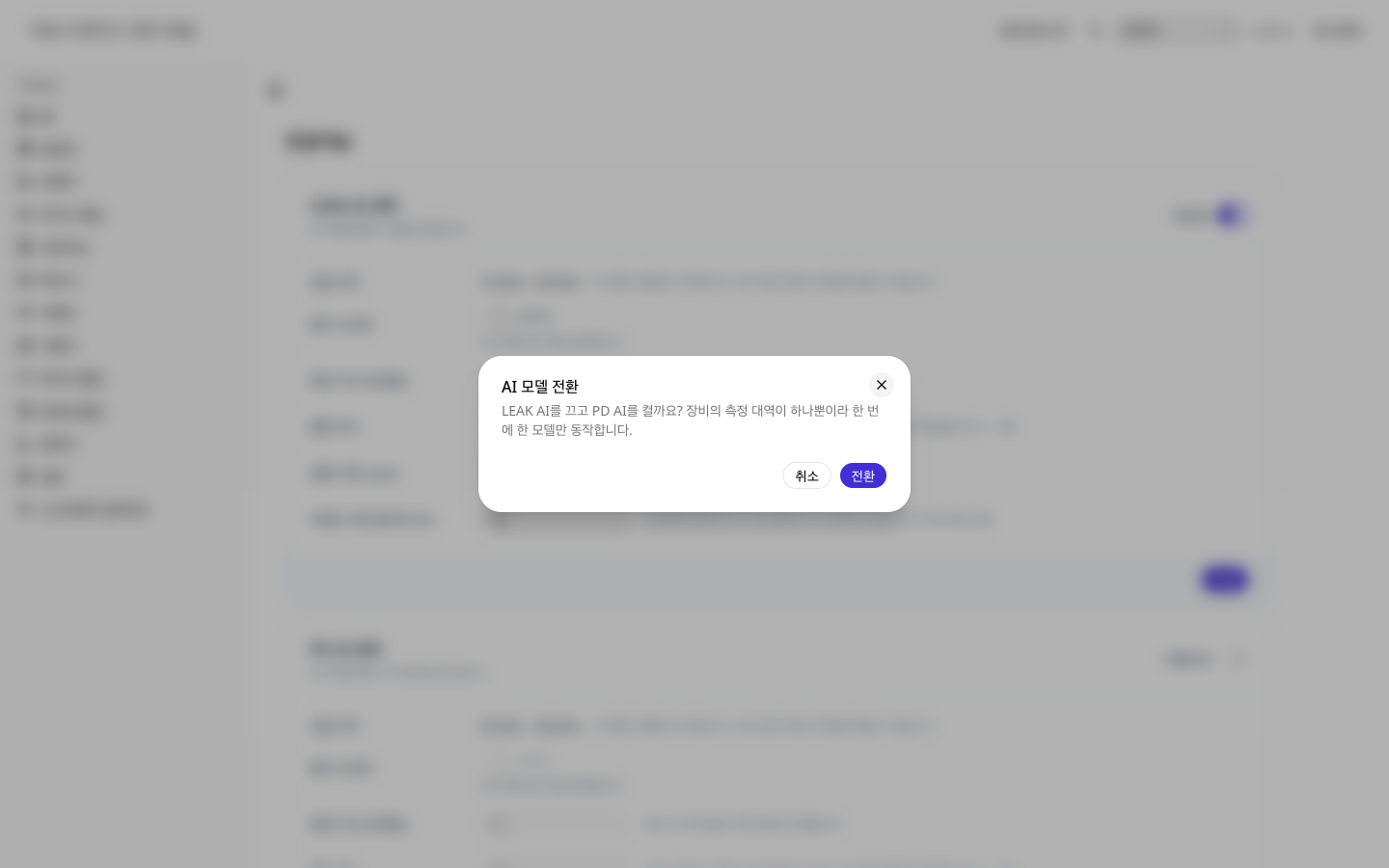
The device has only one measurement band, so Leak AI and Partial Discharge AI cannot be on at the same time.
If you turn on one model while the other is on, an “Switch AI Model” dialog opens. It describes the change, for example, “Turn off LEAK AI and turn on PD AI?”
- “Switch” — turns off the current model and turns on the selected model.
- “Cancel” — makes no changes.
No confirmation dialog appears when you turn a model off.
The Measurement Band Is Fixed
While AI is running, the measurement band is set to the model’s detection band. When AI stops, it returns to the measurement band you selected manually.
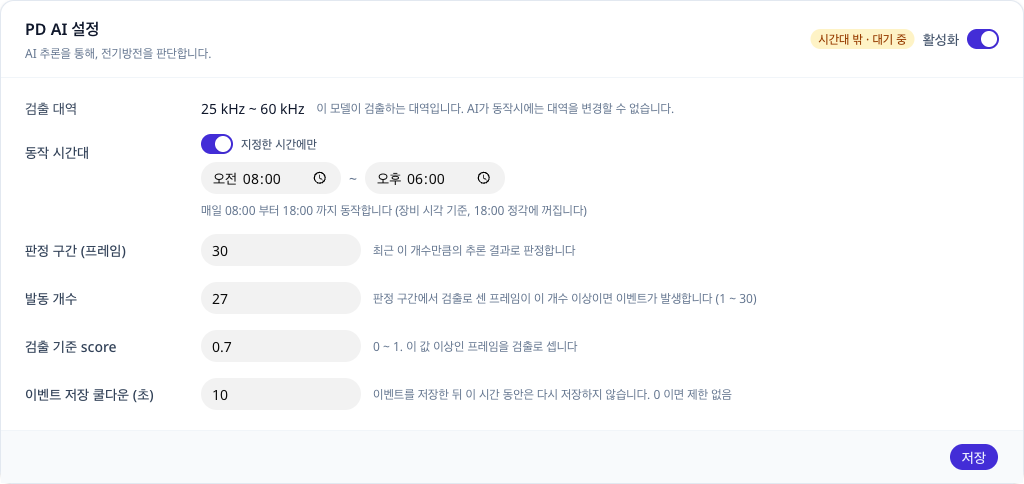
- Partial Discharge AI — 25 kHz ~ 60 kHz
- Leak AI — 13 kHz ~ 65 kHz
While AI is running, you cannot change the following:
- The “Frequency Range” slider in the Beamforming menu
- The microphone check in the Microphone Quality menu
A message such as “The frequency range cannot be changed while AI is running” appears. To change the measurement band, turn off AI first.
The “Detection Band” on the model card is read-only. It shows the band the model detects.
How Detection Works
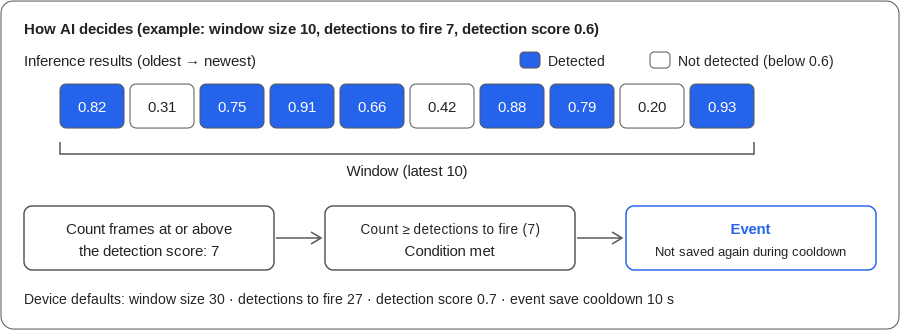
The device runs AI inference on sound about 10 times per second. Each inference result is called a frame.
Detection follows these steps:
- Each frame receives a score. A frame is counted as a detection if its score is at least the “Detection Threshold Score.”
- The device counts detected frames within the most recent “Decision Window.”
- An event occurs when the detection count reaches the “Trigger Count.”
- After saving an event, the device does not save another event from the same model during the “Event Save Cooldown.”
Detection Parameters
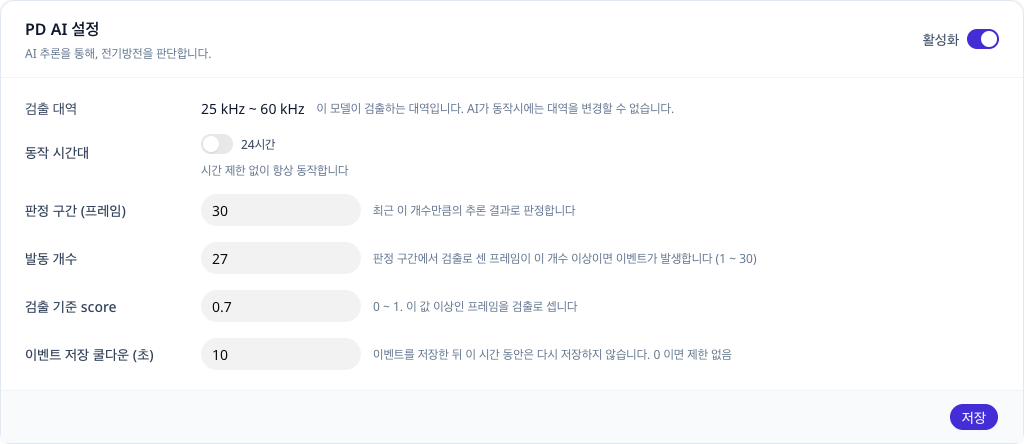
You can set four parameters for each model. Both models have the same defaults.
- Decision Window (frames) — default: 30. An integer of at least 1. Detection uses this many recent inference results. Thirty frames is about 3 seconds.
- Trigger Count — default: 27. An integer from 1 to the Decision Window value. An event occurs when at least this many frames in the decision window count as detections.
- Detection Threshold Score — default: 0.7. A value from 0 to 1. Frames with a score at least this high count as detections.
- Event Save Cooldown (seconds) — default: 10. An integer of at least 0. A value of 0 means no restriction.
※ If you reduce the Decision Window, the Trigger Count is also reduced to fit. Out-of-range values are corrected to the allowed range when saved.
After changing values, press “Save” at the bottom of the card. “Saved” appears briefly when the settings are saved. If saving fails, “Failed to save LEAK AI settings” or “Failed to save PD AI settings” appears.
When a model’s switch is off, its parameter fields, operating-hours switch, and “Save” button are disabled. Turn on the model before changing its values.
Operating Hours
You can set the hours when AI runs. The default is “24 hours.”
Turning on the “Operating Hours” switch changes the setting to “Only during specified hours” and reveals start and end time fields. When first turned on, they are set to 08:00 ~ 18:00.
- Times are based on the device clock, not the browser clock or UTC. Set the device clock under Settings → Time Settings.
- The start time is included; the end time is excluded. The model stops at the exact end time.
- If the start time is later than the end time, the period spans midnight. For example, 22:00 ~ 06:00 runs from 10 p.m. until 6 a.m. the next day.
- The start and end times cannot be the same. In that case, “The start and end times are the same. Turn off the schedule to run 24 hours a day” appears, and “Save” is disabled.
- Time changes take effect only after you press “Save.” The “Enable” switch takes effect immediately.
- Turning off the operating-hours switch clears the entered times. The device does not remember the previous schedule.
- The device checks the schedule about once a minute. Saved changes take effect immediately.
The “Enable” switch must be on for the schedule to matter. If it is off, the model does not run even during the scheduled hours.
Outside the scheduled hours, the model stops and the measurement band returns to its previous setting. “Outside operating hours · Standby” appears beside the switch on the model card. This indicator shows the state when the screen was opened or the settings were saved; it does not update in real time. Reload the screen to see the current state.
※ If the device cannot access a time server (NTP), its clock starts at 1970-01-01T00:00:00 when powered on and will not match the actual time. See System Settings for details.
On-Screen Indicators
AI status appears on the video overlay.
Heatmap Colors
- When both models are off, the heatmap is always in color.
- While AI is running, the heatmap is gray when nothing is detected.
- The heatmap changes to color when a detection occurs.
Status Bar
“LEAK AI” and “PD AI” appear with dots on the left side of the status bar.
- Gray dot — off
- Green dot — on, no detection
- Red dot — detecting
The detection type appears beside the dot only while detection is in progress. Leak AI shows Leak; Partial Discharge AI shows Corona, Floating, or Surface.
The status bar is visible only when “Show Status Bar (Status Bar)” is on in the Camera menu. See Camera Settings for details.
AI Events
An event is saved when the detection criteria are met. In the event list, the type is shown as “Leak” for Leak AI and “Discharge” for Partial Discharge AI.
The “Confidence” column has a value only for AI events. It is the proportion of frames counted as detections within the decision window at the moment the event occurs. It is different from the “Detection Threshold Score.” See Events for information on event files and viewing the list.
Pre-release software (v1.1.1-beta.1)
This information is based on firmware v1.1.1-beta.1 and may change in the official release.
In the event list, Partial Discharge AI events have the type “Partial Discharge.” The “Confidence” column is named “Detection Ratio.”
For an AI event to occur, the current video must contain a peak. A peak is the strongest sound source among sounds at or above the overlay “Threshold.”