Device Manager Screen Layout
Device Manager is a web-based management interface built into the BATCAM FX2. You can access it in a browser to view video, change settings, review events, and update firmware. This page describes the screen layout and the information shown on the Home screen.
What is Device Manager?
Device Manager is built into the device, so you only need a browser; no separate program is required. The screen title is FX2 Device Management Console. The browser tab has the same title.
- Connection — Enter the device address in a browser (HTTP, port 80)
- Minimum screen width — 768 px
- Browser — Device Manager can be used with Chrome 157 for macOS.
※ For instructions on connecting for the first time, see First Connection.
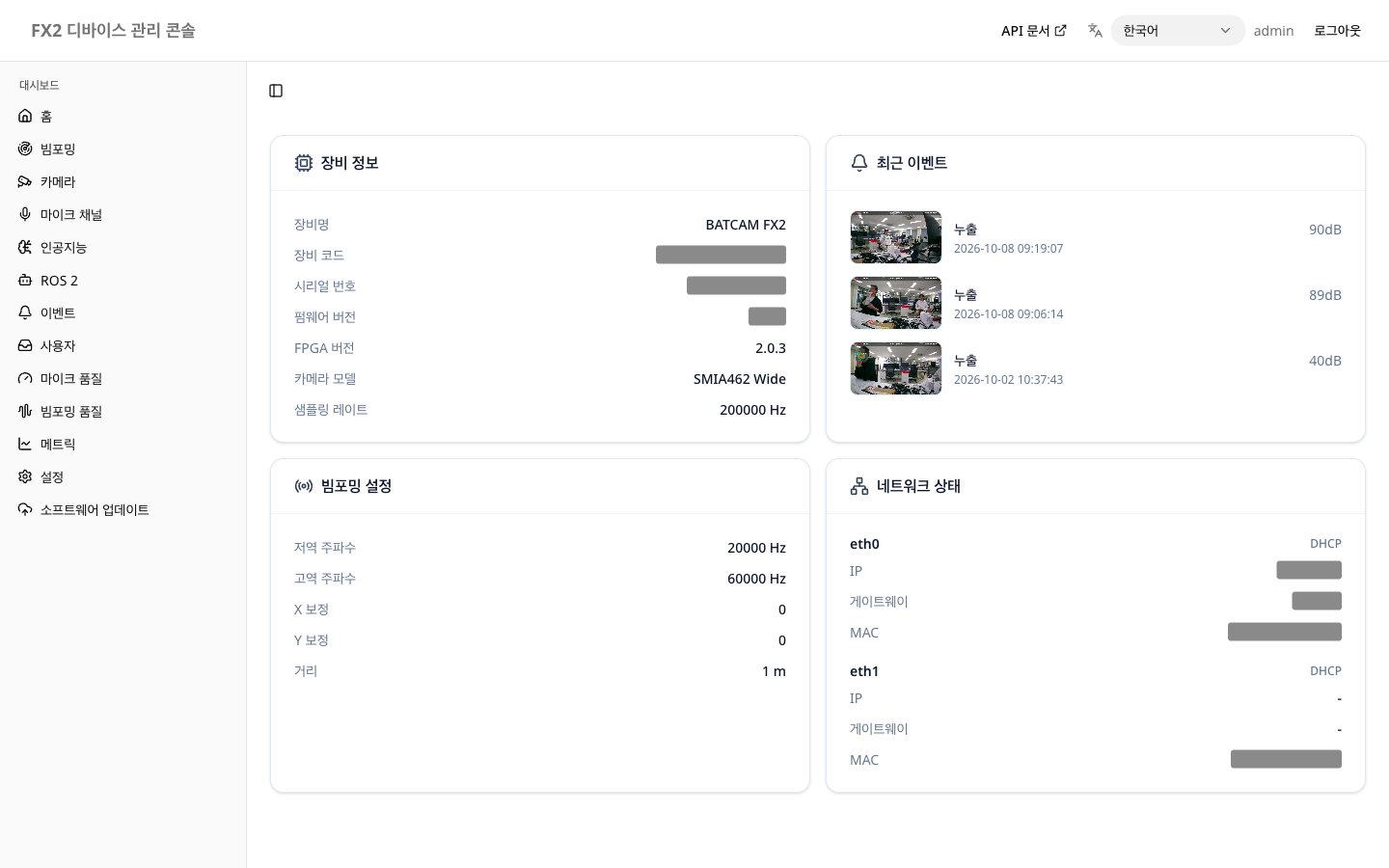
Top bar
The top bar appears at the top of every screen except the login and password change screens. Select the title on the left to go Home. The following items appear on the right, in order.
- API Documentation — Opens the device’s REST API documentation in a new tab.
- Language Selection — Changes the interface language.
- Account ID — Shows the account currently logged in.
- Log Out — Returns to the login screen.

For more about the API documentation, see API and Development Integration.
Menu
There are 13 menu items on the left side of the screen. Administrator and standard user accounts see the same menu. Use the icon beside the menu to collapse or expand the list.
- Home — Shows device information, recent events, beamforming settings, and network status on one screen. This page describes it.
- Beamforming — Configures live video, measurement band, overlay display, and ROI. For details, see Live Video and Beamforming.
- Camera — Configures field of view, image rotation, resolution, exposure, white balance, and focus. For details, see Camera Settings.
- Microphone Channel — Shows the waveform and spectrum of one microphone channel and turns the 40 kHz reference signal on or off. For details, see Microphone Check.
- AI — Configures leak AI and partial-discharge AI. For details, see AI Detection.
- ROS 2 — Sets the ROS 2 domain ID that the device joins. For details, see ROS 2 Integration.
- Events — Displays saved events and configures triggers. For details, see Events.
- Users — Adds and deletes accounts and changes passwords. For details, see User Accounts and Permissions.
- Microphone Quality — Checks sensitivity variation and noise across 112 microphone channels. For details, see Microphone Check.
- Beamforming Quality — Shows a numerical measure of contrast in the beamforming results. For details, see Microphone Check.
- Metrics — Graphs CPU load, temperature, core frequency, and humidity. For details, see System Settings.
- Settings — Covers network, time, language, service restart, and factory reset. For details, see System Settings.
- Software Update — Uploads firmware and FPGA updates. For details, see Firmware Update.
※ The menu item and screen title differ in two places. The screen title for “Microphone Channel” is “Microphone,” and the screen title for “Metrics” is “System Metrics.”
Home screen
Home consists of four cards. Information is loaded only once when you open the screen. Refresh the browser to see updated values.
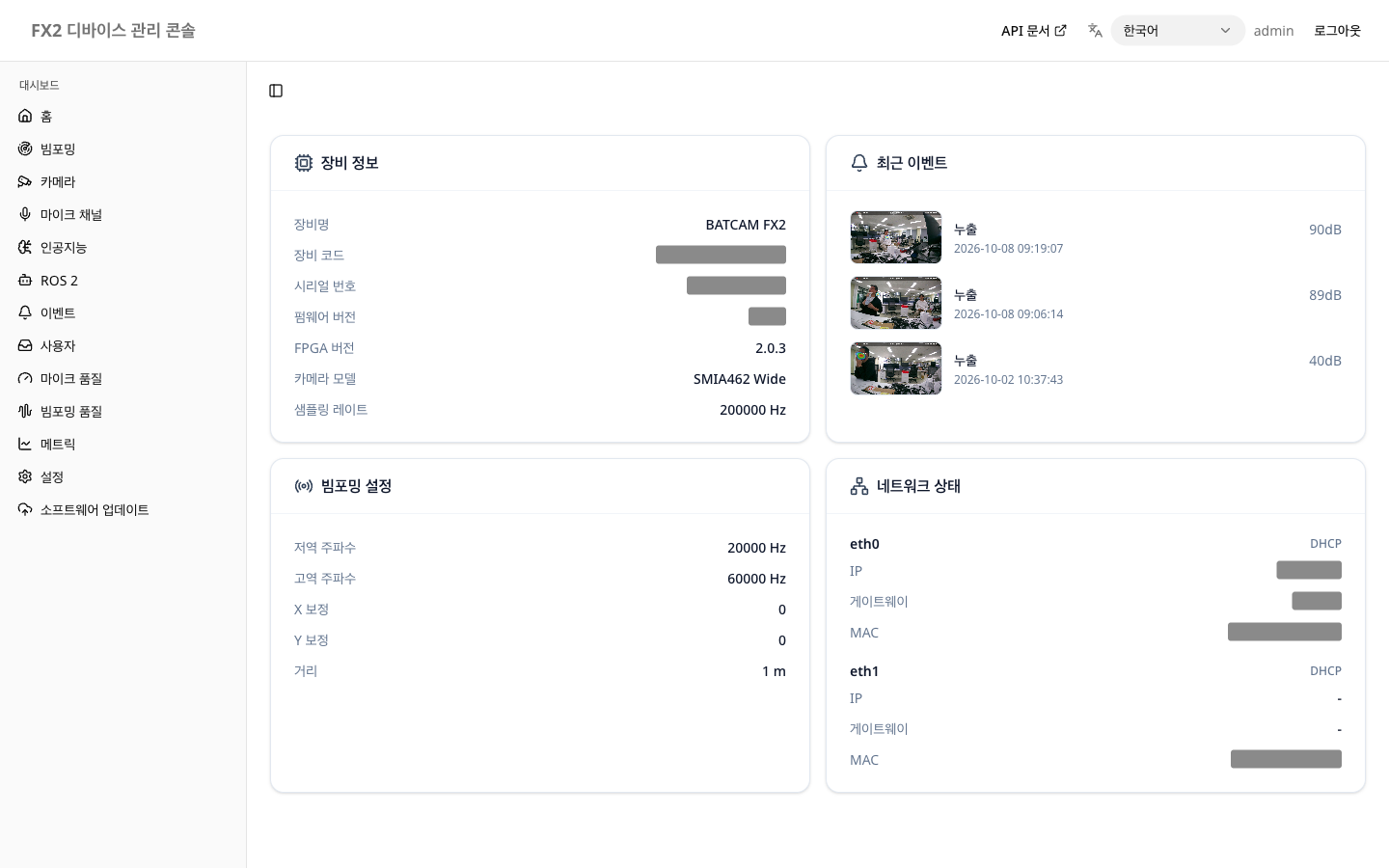
1. Device Information
Shows values that identify the device.
- Device name
- Device code
- Serial number
- Firmware version — Shows the version of the currently installed firmware.
- FPGA version — Shows “-” if no value is available.
- Camera model — Shows “SMIA462 Wide” or “SMI3708 Wide,” depending on the device’s camera. If the camera cannot be found, it shows “Not detected.”
- Sampling rate — 200000 Hz
2. Recent Events
Shows the three most recent events. Each event displays a thumbnail, type, level (dB), and creation time.
- Type — Automatic save, level trigger, leak, discharge
- Time — Based on the time zone set on the device
- If there are no events, “No recent events.” is displayed.
For more about events, see Events.
3. Beamforming Settings
Shows the current beamforming values as read-only information. You cannot change them on this card.
- Low frequency, high frequency — The current measurement band
- X correction, Y correction, distance — Values calibrated at the factory for each field of view
※ Changing the field of view also changes the X correction, Y correction, and distance values. Change the measurement band in the Beamforming menu and the field of view in the Camera menu.
※ If the device cannot read the values, X correction, Y correction, and distance are shown as “-”.
4. Network Status
Shows the connection method (Static or DHCP), IP address, gateway, and MAC address for the eth0 and eth1 ports. This card is shown only to administrator accounts. Standard user accounts see “Unable to load information.”
For instructions on changing network settings, see System Settings.
Language
Choose the interface language from 한국어, English, 简体中文, 日本語, and Tiếng Việt.
- Change it using Language Selection in the top bar or Settings → Language Settings.
- The page reloads when you make a selection.
- The selected language is stored in a browser cookie for one year. It applies separately to each browser used to access the device; it is not a device-wide setting.
- On your first visit, the interface follows the browser language. If that language is not supported, the interface is shown in Korean.
Login Duration and Log Out
Your login remains valid for 24 hours. After 24 hours, you must log in again. Selecting “Log Out” in the top bar clears the login information from this browser and returns you to the login screen.
After a factory reset, the browser used to perform the reset is logged out and taken to the login screen. In firmware v1.1.0, logins in other browsers remain valid for up to 24 hours after they were issued.
Pre-release software (v1.1.1-beta.1)
This information is based on firmware v1.1.1-beta.1 and may change in the official release.
After updating the firmware to v1.1.1 or performing a factory reset, all logins end. You must log in again.
Account Permissions
There are two account types: administrator and standard user. Both accounts see the same menu. Restarting services, performing a factory reset, uploading firmware, and managing accounts require administrator permissions.
For details, see User Accounts and Permissions.