Firmware Update
You can update the device firmware to a new version from the Software Update menu. This page explains what to prepare before updating, the update sequence, how an update is confirmed or rolled back to the previous firmware, and automatic FPGA version matching.
Settings, accounts, and events remain unchanged after the update. You do not need to download events separately beforehand.
Before you begin
- Log in with an administrator account. If you upload using a regular user account, “Upload failed (HTTP 403)” appears.
- Prepare the file that matches the device’s camera model.
- Do not turn off the power or disconnect the Ethernet cable until the update is complete.
- Perform the update over an Ethernet connection.
File for your camera model
Firmware files differ by camera model. Their extension is .mender.
- SMIA462 Wide —
fx2-cm5-arducam-v<version>.mender - SMI3708 Wide —
fx2-cm5-imx708-v<version>.mender
Check the camera model under Home → Device Information → “Camera Model.”
If you upload a file for the wrong device type, such as firmware for a different camera, the screen still displays “Upload successful.” The device reboots without an installation failure notice, and the firmware version remains unchanged. Video and measurements stop, so check the filename before uploading.
Where to get the file
Request the firmware file through Product Support and Inquiries.
Update sequence
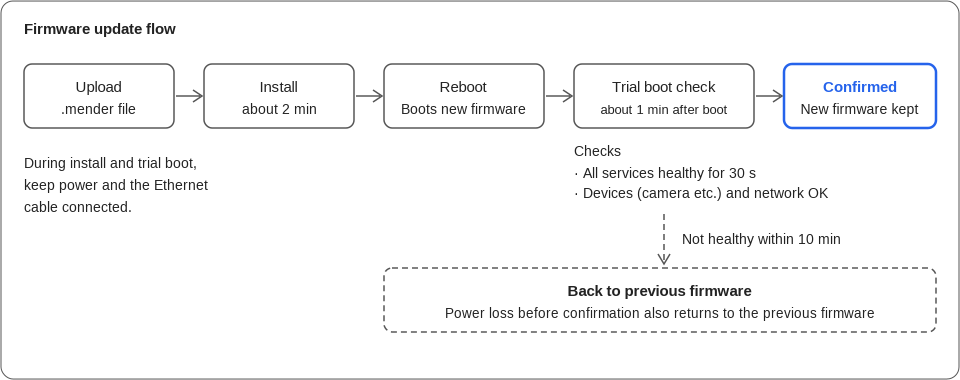
The full sequence is as follows.
- Upload the file
- Install (about 2 minutes)
- Reboot
- Check the trial boot
- Confirm
1. Open the update screen
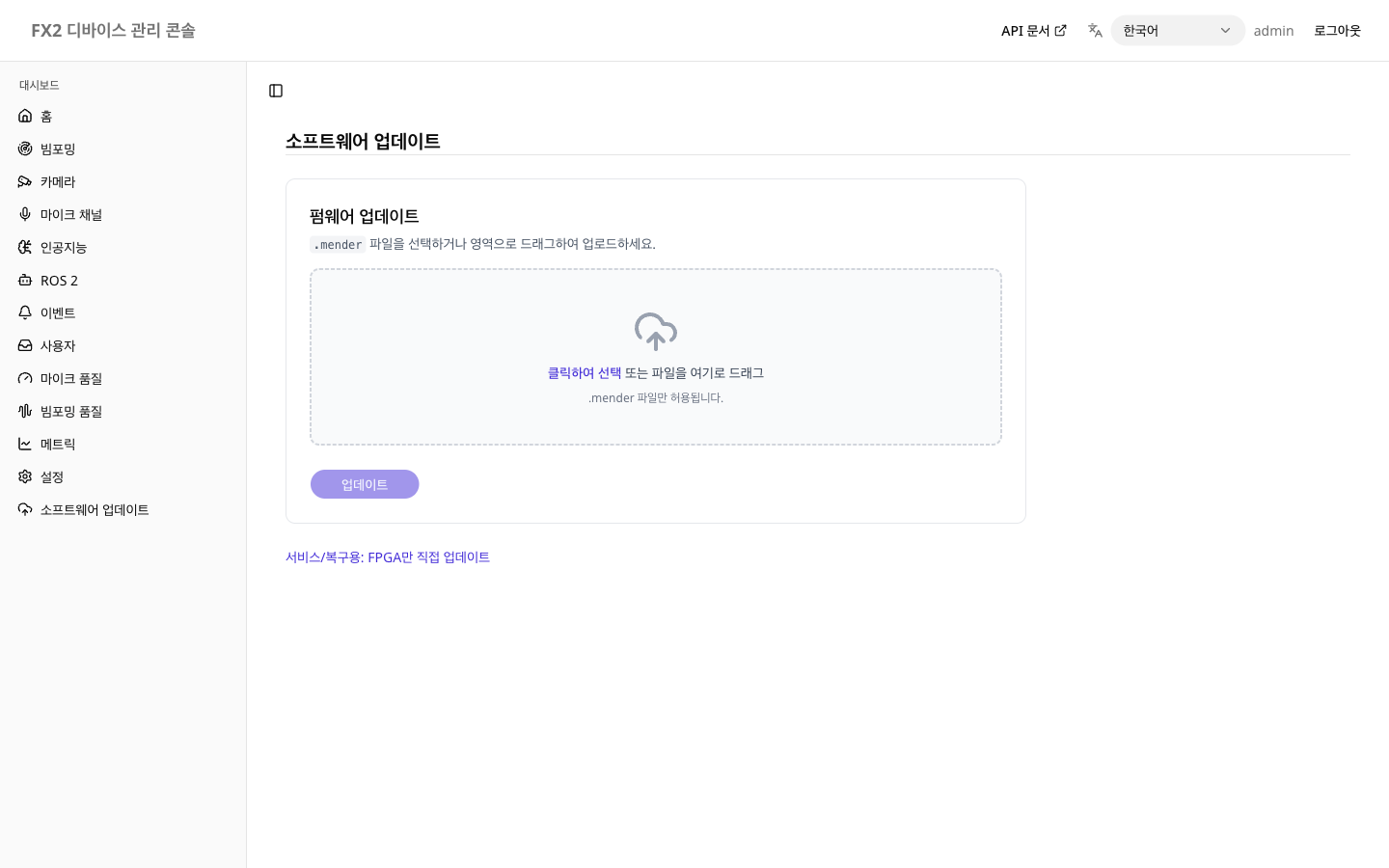
Open the Software Update menu. The “Firmware Update” card appears.
2. Upload the file
Click the area in the card to choose a file, or drag and drop a file into it. Once selected, the filename and size appear.
- For a file other than
.mender, “Only .mender files can be uploaded.” appears, and the file is not selected. - The maximum upload size is 1 GB.
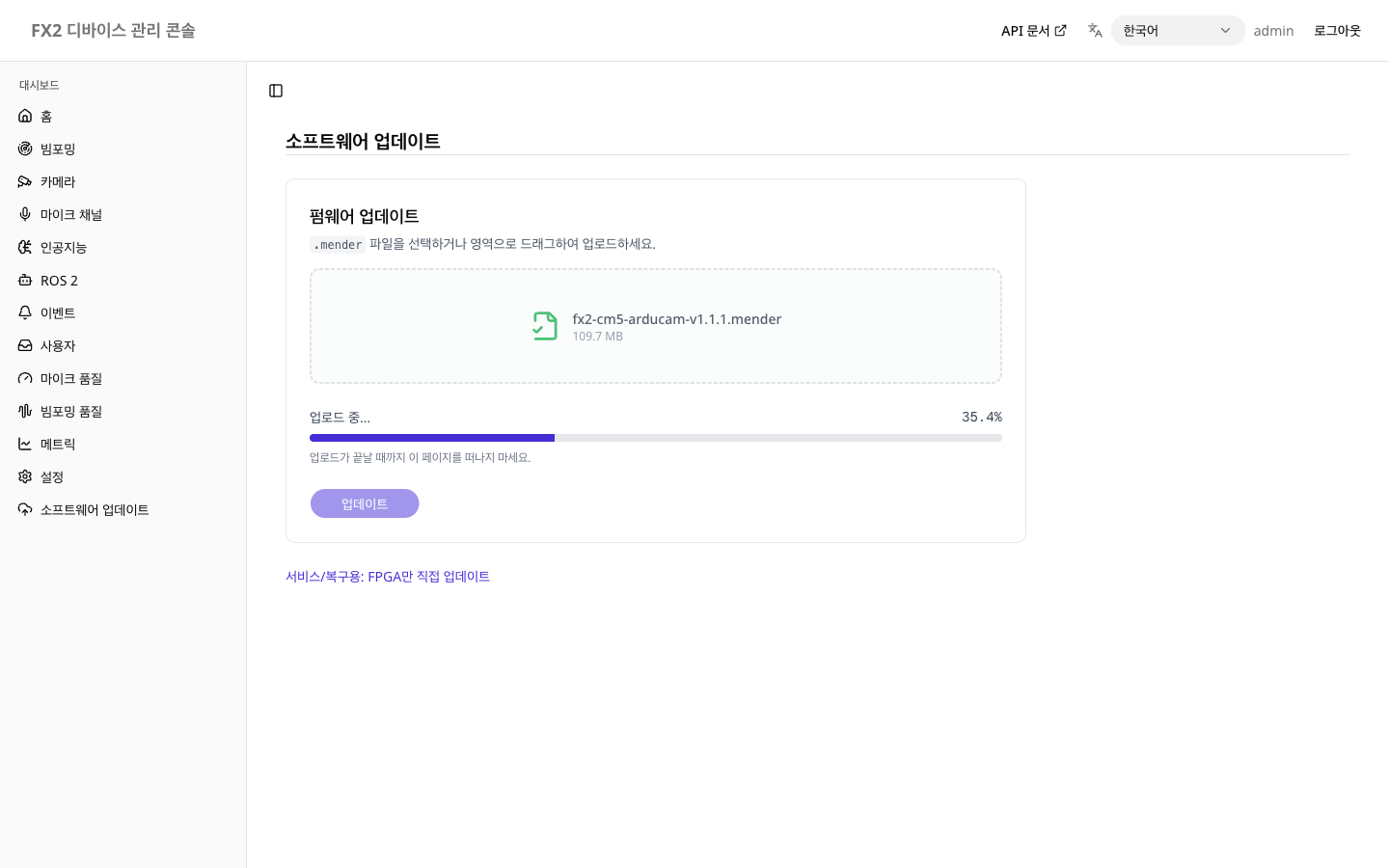
Click “Update” to start the upload. Progress is shown as a percentage.
Do not leave this page until the upload finishes. The browser warns you if you try to close or leave the page during the upload.
If the upload fails, one of the following appears in the card.
- “Upload failed (HTTP 403)” — You are not using an administrator account.
- “Upload failed due to a network error.” — Check the network connection and upload again.
- “Upload canceled.”
- “Authentication information is missing. Please log in again.” — Log in again.
3. Installation and reboot
When the upload finishes, “Upload successful. Installation will take a few minutes (about 2 minutes). The device will restart after installation is complete.” appears.
- Video and measurements stop during installation.
- The device reboots automatically when installation finishes.
- Do not turn off the power before the reboot finishes.
While installation is in progress, you cannot run an FPGA update, factory reset, or service restart at the same time.
4. Trial boot and confirmation
After booting with the new firmware, the device checks it in a trial boot state instead of confirming it immediately.
The device checks the following.
- All device services operate normally for 30 seconds without restarting.
- Devices such as the network port and camera are all detected.
- The device or gateway recorded during installation responds.
Pre-release software (v1.1.1-beta.1)
This information is based on firmware v1.1.1-beta.1 and may change in the official release.
If there is no peer to check for network connectivity, or only the current gateway is a response target, a record of packets sent and received through an Ethernet port with an IPv4 address also passes the check.
If everything is normal, the update is confirmed about 1 minute after booting. Once confirmed, the device continues using the new firmware.
In the following cases, the update is not confirmed and the device returns to the previous firmware.
- The conditions above are not met within 10 minutes of booting.
- Power is lost or the device reboots before confirmation.
When returning to the previous firmware, the device reboots once more. The rollback may take more than 10 minutes. You can update a device again after it returns to the previous firmware. If the device freezes during the trial boot, you must turn it off and back on for it to return to the previous firmware.
※ Events saved by the new firmware during the trial boot are not visible after returning to the previous firmware.
If the PC and device are connected directly, keep the cable connected and the PC powered on until the trial boot finishes. The device may return to the previous firmware if the cable is disconnected between installation and reboot, or if the uploading PC is turned off and there is no gateway. With firmware v1.1.0, a device with only its eth0 port connected directly to a PC may return to the previous firmware if the gateway does not respond.
Pre-release software (v1.1.1-beta.1)
This information is based on firmware v1.1.1-beta.1 and may change in the official release.
The issue where a device with only its eth0 port connected directly to a PC returned to the previous firmware when the gateway did not respond has been fixed. The issue where the device restarted after the update had already been confirmed has also been fixed. However, if a PC as well as the gateway was recorded as a peer during installation and neither responds, the device may return to the previous firmware even if packets are being exchanged. If the cable is disconnected, the device returns to the previous firmware as before.
5. Verify the update
When the reboot finishes, reconnect to Device Manager.
- Check that “Firmware Version” under Home → Device Information shows the new version.
- Check “FPGA Version” as well.
Pre-release software (v1.1.1-beta.1)
This information is based on firmware v1.1.1-beta.1 and may change in the official release.
After updating to v1.1.1, the login screen appears, so log in again. API clients must also obtain new tokens.
※ After updating to v1.1.1, RTSP video, WebRTC video, WebSocket, ONVIF snapshots, and event files require a device account (stream authentication, enabled by default). Before updating, add the device account to your VMS, viewer, and scripts. For details, see Security and Accounts under External System Integration.
※ Robot programs integrated through ROS 2 must be rebuilt with message package fx2_stream_msgs 2.0.0. Prepare the robot side before updating. For details, see ROS 2 Integration.
Automatic FPGA version matching
Firmware v1.1.0 includes FPGA 2.0.2. After the firmware update is confirmed, the device acts as follows based on the FPGA version it reads.
- If it is the official 2.0.2 release, or a version higher than 2.0.2 and no higher than 2.0.3, the device keeps it.
- If it is lower than 2.0.2, higher than 2.0.3, or a development build of 2.0.2, the device changes it to 2.0.2.
- If the version cannot be read, the device does not flash the FPGA automatically.
Pre-release software (v1.1.1-beta.1)
This information is based on firmware v1.1.1-beta.1 and may change in the official release.
Firmware for v1.1.1 includes the official FPGA 2.0.3 release. After the firmware update is confirmed, the device acts as follows based on the FPGA version it reads.
- If it is the official 2.0.3 release, the device keeps it.
- If it is a lower or higher version, or a development build of 2.0.3, the device changes it to the official 2.0.3 release.
- If the version cannot be read, the device does not flash the FPGA automatically.
Do not turn off the power while the FPGA is being changed. The device may restart afterward.
If the FPGA change fails, the device does not retry automatically. It continues operating with the FPGA it was using.
Messages on the update screen
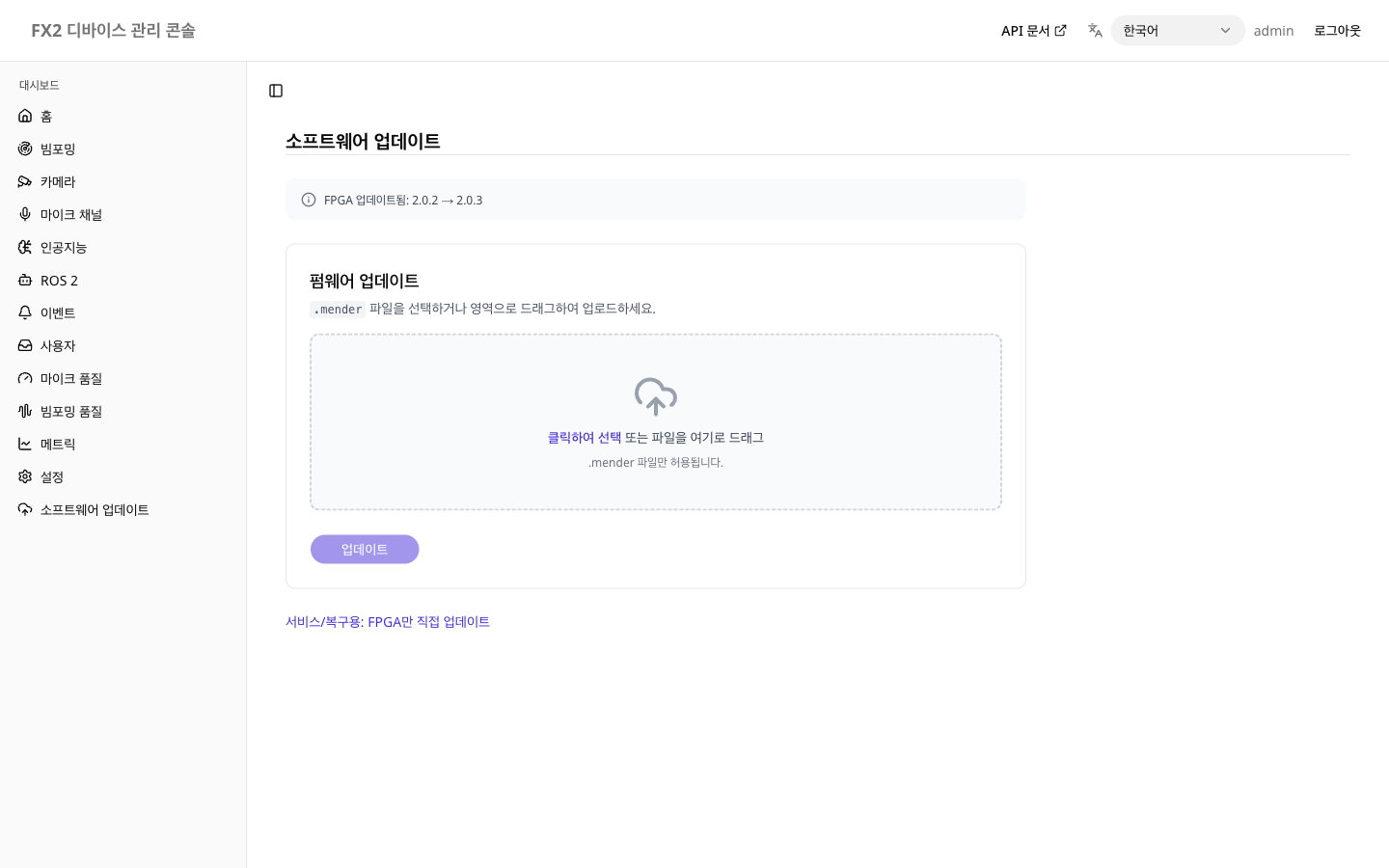
FPGA status appears at the top of the Software Update menu. Nothing is displayed if the version already matches or is left unchanged.
- “Updating FPGA. Do not turn off the power. The device may restart when complete.” — The FPGA is being changed. Wait.
- “FPGA updated: {previous version} → {new version}” — The FPGA was updated.
- “FPGA downgraded: {previous version} → {new version}. The FPGA included with this firmware is an earlier version.” — The FPGA included with the firmware was lower than the current version, so it was downgraded.
- “Failed to update FPGA after firmware installation.” — This is a red notice. The device continues operating with the current FPGA and does not retry automatically. Contact the support address shown on the screen.
- “Could not read the FPGA version, so no update was attempted.” — The FPGA was not changed. Contact information is also shown.
- “FPGA check is waiting for firmware update confirmation. If this continues after rebooting, contact support.” — This is normal for about 1 minute immediately after the update. Contact support if the message remains for more than 15 minutes.
Manually update only the FPGA
If the device cannot read the FPGA version, it does not flash the FPGA automatically. An administrator can upload an FPGA file manually when service or recovery is needed.
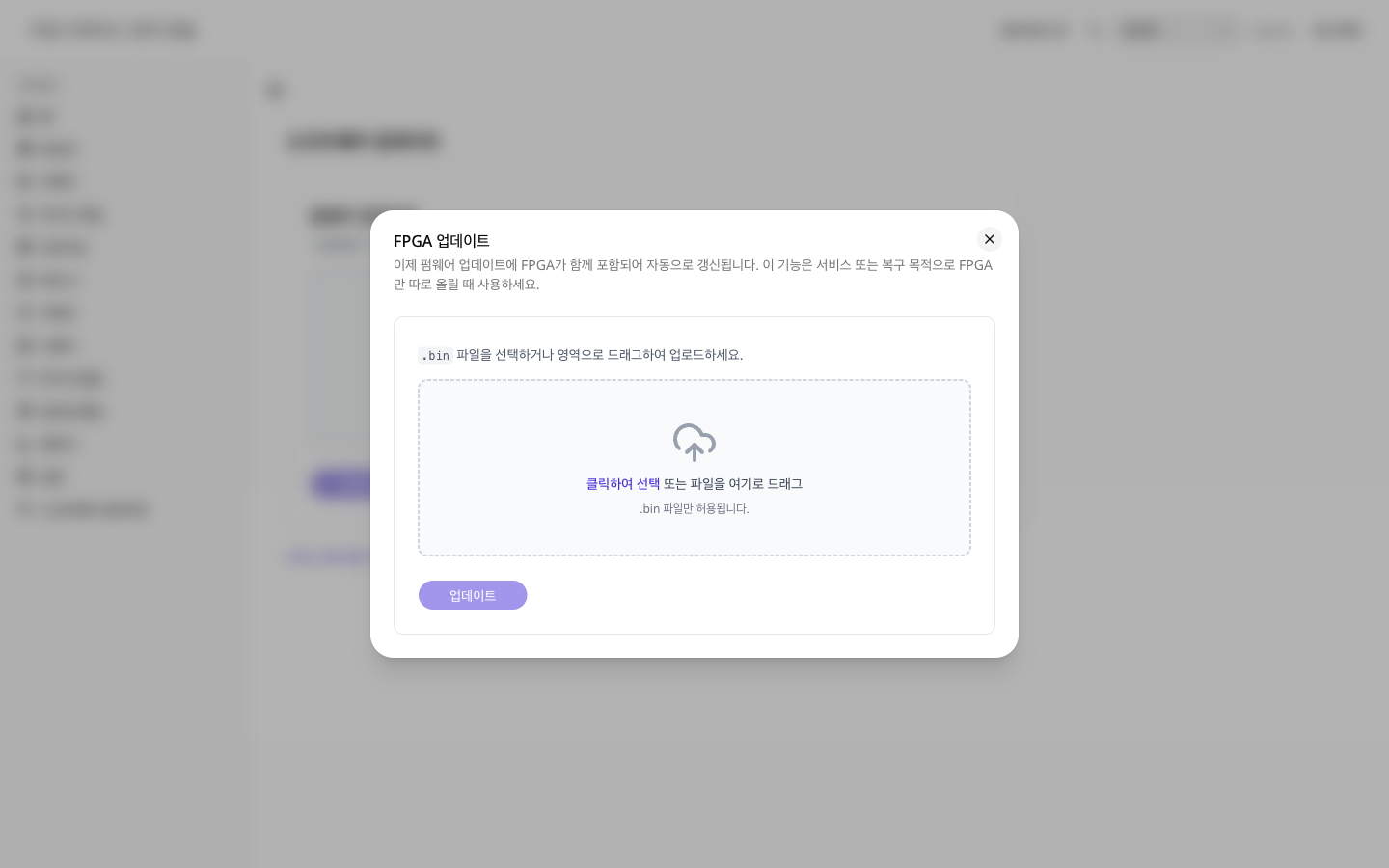
Click the “For service/recovery: Update only the FPGA manually” link below the Software Update menu to open the “FPGA Update” window. Upload an FPGA file with the .bin extension. Administrator privileges are required. Request a recovery FPGA file through Product Support and Inquiries.
- You cannot close the window during the upload.
- Changing the FPGA takes a few minutes, and the device reboots when it finishes. Do not turn off the power during this time.
- If the version in the filename is lower than the current FPGA version, “The selected file appears to be an earlier version than the currently running FPGA ({version}). If you continue, the FPGA will be changed to the earlier version.” appears.
※ An FPGA uploaded manually also follows the automatic version-matching rules above on the next boot.
Older firmware cannot be installed
You cannot install firmware older than v1.1.0 through an update. The installation is rejected.
If you need older firmware, the device’s firmware image must be reinstalled. Request firmware image reinstallation through Product Support and Inquiries.
※ This restriction applies only to installation through an update. It does not prevent a device from returning to the previous firmware when an update is not confirmed.