Events
An event is a record the device saves when a condition is met. This page explains how to view, download, and delete saved events, and how to configure the conditions that create them.
The Events menu has two tabs: “Recent Events” and “Trigger Conditions.”
What Is an Event?
When an event occurs, the device saves a record of that moment as files.
- Photo (JPG) — An image with the heatmap overlaid. Always saved.
- Video (MP4) — A 2-second clip spanning the moment before and after the trigger.
- Audio (WAV) — Sound from the event period.
- Measurement data (HDF5) — Raw beamforming data.
You can choose whether to save video, audio, and measurement data. See “Event Storage Items” below for details.
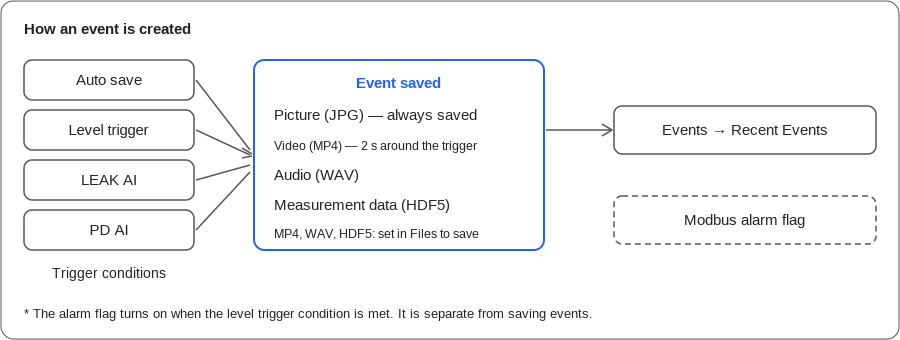
Events occur through one of the following four triggers. The same names appear under “Type” in the event list.
- Auto Save — Saves an event if no event occurs for a set period.
- Level Trigger — Saves an event when the level meets or exceeds a threshold.
- Leak — Saves an event when the leak AI detects a leak.
- Discharge — Saves an event when the partial discharge AI detects a discharge.
Pre-release software (v1.1.1-beta.1)
This information is based on firmware v1.1.1-beta.1 and may change in the official release.
The type of a partial discharge AI event is shown as “Partial Discharge” instead of “Discharge.” The “PD AI Settings” card on the Trigger Conditions tab is shown as “Partial Discharge AI Settings.”
Recent Events
Saved events are shown newest first. Each page shows 10 events. If there are 11 or more, “Previous” and “Next” buttons and page numbers appear below the list. If there are no events, “No events” is displayed.
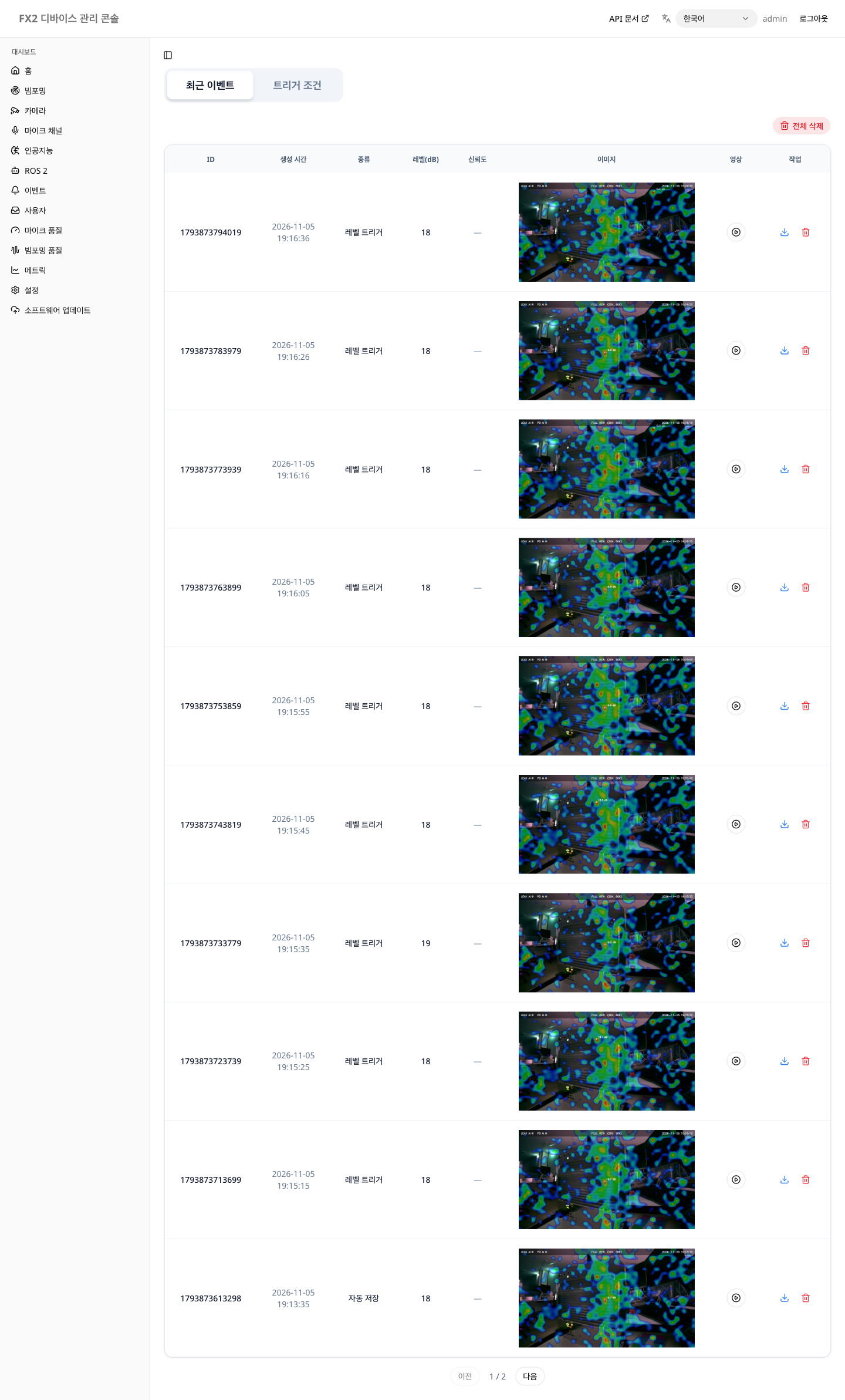
List Columns
- ID — The event number.
- Creation Time — The date and time the event occurred, shown in the browser’s time zone.
- Type — Auto Save, Level Trigger, Leak, or Discharge.
- Level (dB) — The level of the strongest peak at the moment of the event, displayed as an integer with decimal places truncated.
- Confidence — Shown only for AI events. Other events show “—.”
- Image — The saved photo.
- Video — A play button. Shows “—” if there is no video.
- Actions — Download and delete buttons.
※ Recent events on the home screen are shown in the device’s time zone. If the browser and device use different time zones, the times shown on the two screens will differ.
Confidence
Confidence is the percentage of frames counted as detections during the AI’s evaluation interval when it classified the event. If 8 of 10 frames in the interval are detections, confidence is 80 %.
Hover over the confidence value to see the original count, such as “8 / 10.”
Confidence is different from the “detection threshold score.” The detection threshold score determines whether an individual frame counts as a detection. See AI Detection for how classification works.
Pre-release software (v1.1.1-beta.1)
This information is based on firmware v1.1.1-beta.1 and may change in the official release.
The “Confidence” column has been renamed “Detection Rate.” Its meaning and calculation are unchanged.
View Video
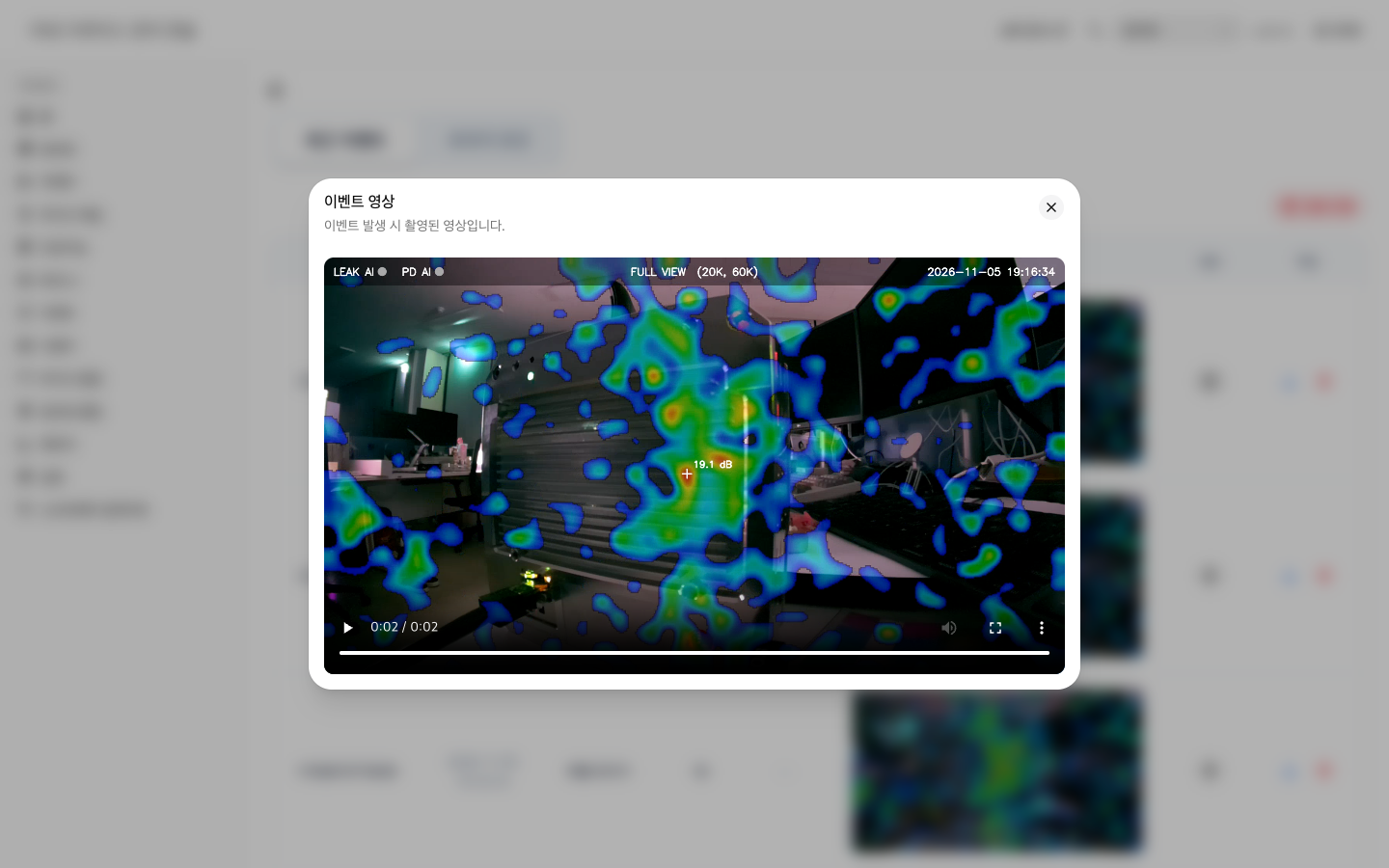
Click the play button in the “Video” column to open the “Event Video” window. The video plays automatically.
Download
Click the download button in the “Actions” column to download the event files as a single ZIP file. The filename is fx2-event-<ID>.zip.
The ZIP contains only files actually saved for that event. Any photo, video, audio, or measurement data that was not saved is excluded.
※ In firmware v1.1.0, event files can be downloaded without an account.
Pre-release software (v1.1.1-beta.1)
This information is based on firmware v1.1.1-beta.1 and may change in the official release.
If even one file cannot be downloaded, no ZIP is created and “Failed to download event” is displayed.
※ A device account is required to download event photos, videos, and files (stream authentication, enabled by default). Device Manager uses your existing login credentials. If the login has expired and the download fails, you are taken to the login screen. Opening an event file URL directly in a browser brings up a login prompt. Enter the device account credentials.
Delete
Administrator privileges are required to delete events.
- Delete one event — Click the delete button in the “Actions” column and confirm at “Delete this event?”
- Delete all events — Click “Delete All” at the top right. Confirm “Delete all events?” and then “This action cannot be undone. Are you sure you want to delete all events?”
Deleted events cannot be restored, so download any events you need first. Deleting all events does not change the trigger condition settings.
The delete button is also visible to standard user accounts. If you attempt to delete an event with a standard user account, “Failed to delete event” appears and the event remains. See User Accounts and Permissions for account permissions.
Automatic Cleanup
When 10 % or less of the device’s storage space remains, the device automatically deletes events, starting with the oldest. This threshold cannot be changed in Device Manager.
Download any events you need before storage space runs low.
Trigger Conditions
Configure the conditions that create events and the files to save. The following cards appear from top to bottom:
- Event Storage Items
- Modbus TCP
- Auto Save Settings
- Level Trigger Settings
- LEAK AI Settings, PD AI Settings
Each card’s “Enable” switch is saved immediately. Numeric values are saved only when you click “Save” on the card. When the switch is off, the numeric fields and “Save” button are disabled. In firmware v1.1.0, standard user accounts can also change Auto Save Settings and Level Trigger Settings.
Pre-release software (v1.1.1-beta.1)
This information is based on firmware v1.1.1-beta.1 and may change in the official release.
Administrator privileges are required to change Auto Save Settings and Level Trigger Settings. Standard user accounts can only view the values, and the cards display “Only administrators can make changes.”
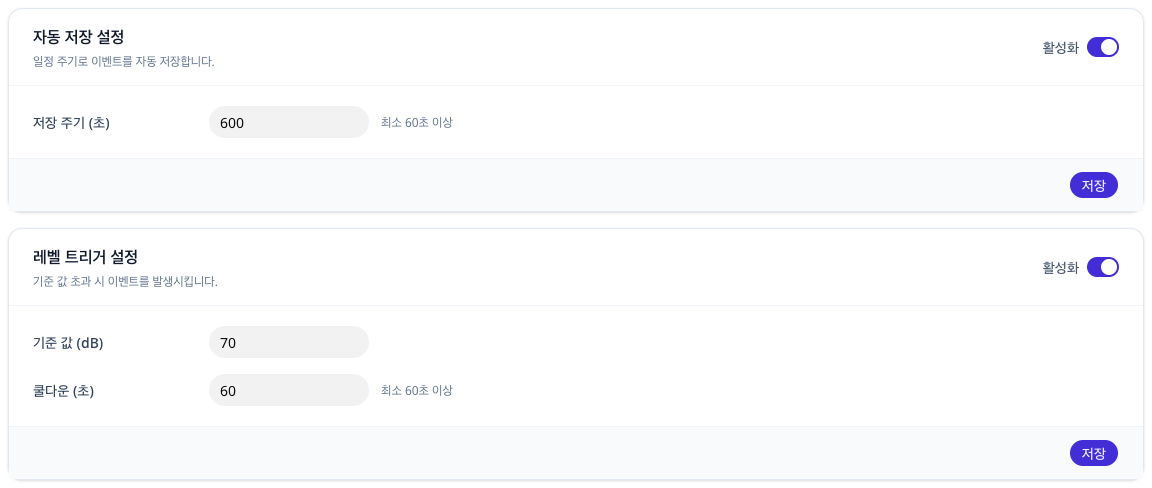
Auto Save
Saves an event if no event of any type occurs for a set period. Enable this to keep a periodic record of site conditions.
- Enable — Off by default.
- Save Interval (seconds) — 600 seconds by default. The minimum is 60 seconds; smaller values are raised to 60 seconds when saved.
Auto Save occurs when the save interval has elapsed since the last event, regardless of its type. Any new event restarts the interval.
※ If there is no peak in the video, an Auto Save event is not saved either.
Level Trigger
Saves an event when the level meets or exceeds a threshold.
- Enable — On by default.
- Threshold (dB) — 70 dB by default.
- Cooldown (seconds) — 60 seconds by default. The minimum is 60 seconds; smaller values are raised to 60 seconds when saved.
The cooldown starts from the last event, even if that event was an Auto Save or AI event. If another event occurs during the cooldown, the Level Trigger cannot occur until the cooldown ends.
※ If the overlay “Threshold” in the Beamforming menu is higher than the Level Trigger threshold, the Level Trigger will not occur. Sounds below the overlay threshold are not identified as peaks.
AI Triggers
The “LEAK AI Settings” and “PD AI Settings” cards are the same as those in the AI menu. Their switches and parameters are linked. See AI Detection for details.
Event Storage Items
Choose which files to keep when an event occurs. The selections apply equally to all triggers.
- Video (MP4) — Selected by default. Has the highest processing cost.
- Audio (WAV) — Selected by default. Sound from the event period.
- Measurement data (HDF5) — Selected by default. Raw data, usually the largest file.
There is no option to select photos. Called “Screenshot” on the screen, they are always saved. If you turn off all three optional items, “If all are turned off, only a screenshot will remain for the event” is displayed.
Changes take effect from the next event after you click “Save.” Files for previously saved events remain unchanged.
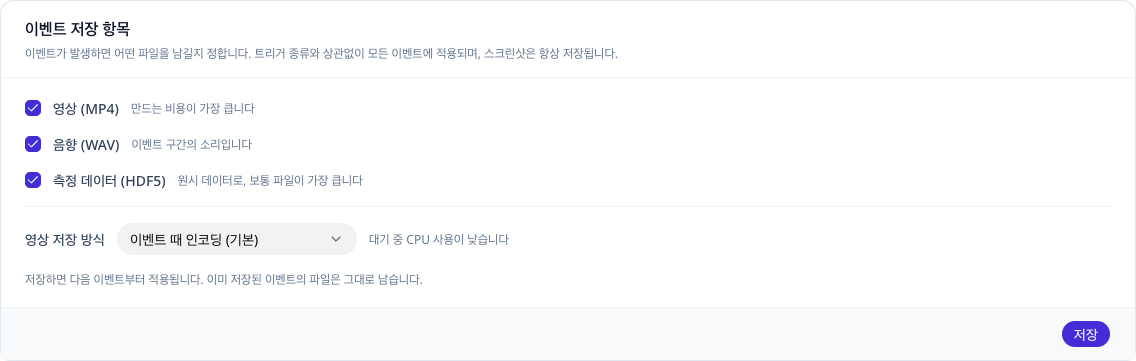
Video Encoding Mode
Choose how videos are created under “Video Encoding Mode.”
- Encode on Event (default) — Keeps CPU usage low during normal operation. Creates a video when an event occurs.
- Continuous Encoding — Avoids a processing spike when an event occurs. Video encoding runs continuously.
With “Encode on Event,” up to two videos can be created at the same time. If a third event occurs while they are being created, only a photo is saved for that event.
Modbus TCP
This tab also includes a Modbus TCP card. It lets PLC and SCADA systems read levels and alarms from the device. See External System Integration for setup instructions.
Custom Triggers
In firmware v1.1.0, an administrator can add triggers through REST, but added triggers are only saved; they do not create events. Only Auto Save, Level Trigger, and AI triggers create events.
Pre-release software (v1.1.1-beta.1)
This information is based on firmware v1.1.1-beta.1 and may change in the official release.
Custom triggers record events when their conditions are met. Triggers registered and enabled before an update may start working immediately after the update, so check their thresholds and enabled status beforehand.
You can register additional level triggers with thresholds different from the main Level Trigger. Device Manager has no controls to add or delete them; an administrator registers them through REST. Each registered trigger has its own threshold and fires when the level meets or exceeds it.
- Add —
POST /event/trigger(multipart). Put the threshold (dB) in thevaluefield. Administrator privileges are required. - Number — New trigger IDs start at 101.
- Initial state — Created enabled. If no cooldown is set, it operates with a 60-second cooldown. In that case, the
cooldownvalue in the list is empty. - Set cooldown — Specify
cooldownwithPATCH /event/trigger. Administrator privileges are required. - List — View registered triggers with
GET /event/trigger. - Delete — Put the trigger number in the
idfield ofDELETE /event/trigger. Administrator privileges are required. Default triggers with IDs of 100 or less cannot be deleted.
This example adds a trigger with an 85 dB threshold and sets its cooldown to 60 seconds. For id in the second command, use the number returned by the first command.
curl -u <ID>:<password> -F value=85 http://<device-ip>/event/triggercurl -u <ID>:<password> -X PATCH -F id=<trigger-id> -F cooldown=60 http://<device-ip>/event/triggerSee API and Developer Integration for how to make REST calls.
Operating Tips
- Start with a low Level Trigger threshold. After checking the site’s normal level, raise the threshold to reduce unnecessary events.
- Check the normal level using the number next to the peak marker on the Beamforming screen.
- Download events regularly. When storage space runs low, the oldest events are deleted automatically.