External System Integration
BATCAM FX2 can send video, measurements, and events to other systems such as VMSs, PLCs, and robots. This page helps you choose a method for each type of system and explains the connection details.
Choose an integration method
Choose a method that matches the system you want to connect.
| System to connect | Method | Data received |
|---|---|---|
| VMS, video viewer | RTSP, ONVIF | Video with a heatmap overlay |
| PLC, SCADA | Modbus TCP | Level (dB), alarm |
| PLC, measuring instrument (analog input) | 4-20 mA, RS485 | One level (dB) value |
| Robot | ROS 2 | Beamforming results, audio, AI assessments |
| Software development | REST API, WebSocket | Settings, events, real-time data |
Pre-release software (v1.1.1-beta.1)
This information is based on firmware v1.1.1-beta.1 and may change in the official release.
Robots can also receive camera video through ROS 2, along with beamforming results, audio, and AI assessments.
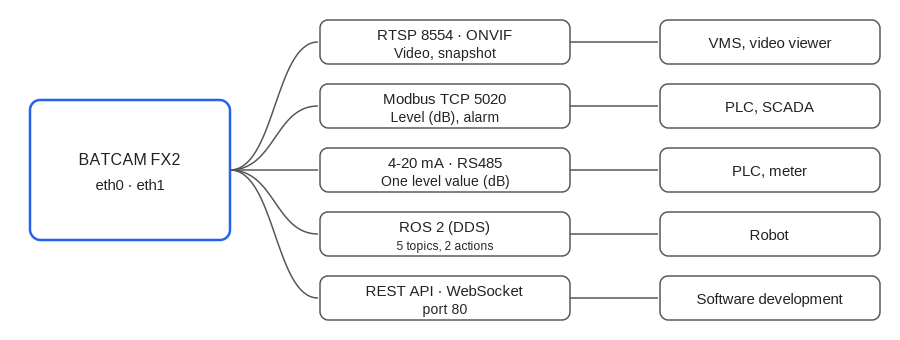
For REST API and WebSocket, see API and Development Integration. For ROS 2, see ROS 2 Integration.
Security and accounts
In firmware v1.1.0, no account is required for RTSP or WebRTC video, WebSocket real-time data, ONVIF snapshots, or event files (photos, video, audio, and measurement data). Anyone who can access the device can receive them.
The following connections also do not require authentication.
- ONVIF services (device discovery and queries) — no authentication
- Modbus TCP — no authentication. It is off by default and should be enabled only when needed.
- ROS 2 topics and actions — no authentication. For details, see ROS 2 Integration.
※ The device must be used only on an internal network that cannot be accessed from outside.
Pre-release software (v1.1.1-beta.1)
This information is based on firmware v1.1.1-beta.1 and may change in the official release.
A device account is required to receive RTSP or WebRTC video and WebSocket real-time data. This is called stream authentication and is enabled by default starting with firmware v1.1.1. Use the same account you use to log in to Device Manager; both administrator and regular user accounts work.
- RTSP video — account required
- WebRTC (Device Manager video) — account required. Device Manager uses your existing login information.
- WebSocket — account required
- ONVIF snapshots — account required
- Event files (photos, video, audio, and measurement data) — account required
- ONVIF services (device discovery and queries) — no authentication
- Modbus TCP — no authentication. It is off by default and should be enabled only when needed.
- ROS 2 topics and actions — no authentication. Anyone in the same DDS domain can view video through the video topic without an account, even when stream authentication is enabled. For details, see ROS 2 Integration.
※ Account information is transmitted over unencrypted RTSP and HTTP. The device must be used only on an internal network that cannot be accessed from outside.
1. Turn off stream authentication
This feature is available starting with firmware v1.1.1.
Pre-release software (v1.1.1-beta.1)
This information is based on firmware v1.1.1-beta.1 and may change in the official release.
If you need to use an older VMS or viewer that cannot accept account credentials, an administrator can turn off stream authentication. Turn it off under Settings → Stream Authentication, or send {"auth": false} to REST PATCH /setting/stream. No reboot is required. Once it is off, anyone can receive the items listed above as requiring an account without one. For details, see System Settings.
2. Repeated invalid account attempts
This feature is available starting with firmware v1.1.1.
Pre-release software (v1.1.1-beta.1)
This information is based on firmware v1.1.1-beta.1 and may change in the official release.
If account verification fails 10 times within one minute from an address, video, WebSocket, and event file connections from that address are blocked for 60 seconds. During this period, Device Manager login information and recently successful accounts can still be used. A newly entered account may have to wait up to 60 seconds. This limit does not apply to the Device Manager login screen.
RTSP
VMSs and video viewers receive video from an RTSP address.
rtsp://<device-ip>:8554/overlay- Path — /overlay only. The video includes a heatmap and status bar overlay. There is no raw video path (/raw).
- Port — 8554
- Authentication — none in firmware v1.1.0. Video can be received without an account.
- Transport — TCP is recommended. UDP unicast and UDP multicast are also available.
- Codec — H.264 Baseline
- Frame rate — 25 fps
- GOP — 2 seconds (50 frames)
- Resolution — the resolution set in the Camera menu. A resolution change is reflected in the stream after the service restarts.
- Audio — none
※ The encoder stops when no clients are viewing the video and starts again when a client reconnects.
Pre-release software (v1.1.1-beta.1)
This information is based on firmware v1.1.1-beta.1 and may change in the official release.
You must save a device account in the VMS or viewer. You can also include the account in the address.
rtsp://<ID>:<password>@<device-ip>:8554/overlay- Authentication — device account. Only Basic authentication is supported; Digest authentication is not supported. Requests with missing or incorrect account credentials are rejected with 401.
- Transport — TCP is recommended. UDP unicast is also available. Multicast is rejected (461) when stream authentication is enabled. If multicast is essential, you must turn off stream authentication.
※ To play video in VLC, enter the device username and password as the RTSP credentials. Video playback with account credentials has been verified in VLC. Other VMSs and viewers may use different methods for entering credentials and were not verified when this document was written.
For instructions on changing the resolution, see Camera Settings.
WebRTC
Device Manager receives video through WebRTC. Video will not appear if a firewall or router blocks this communication.
- Address — http://<device-ip>:8889/overlay/whep
- Ports — TCP 8889, UDP 8189
- Authentication — none in firmware v1.1.0.
- Simultaneous viewing — up to 10 connections
Pre-release software (v1.1.1-beta.1)
This information is based on firmware v1.1.1-beta.1 and may change in the official release.
A device account is also required for WebRTC video. Device Manager uses your existing login information, so you do not need to enter credentials separately.
If video does not appear, see Troubleshooting for checks to perform.
ONVIF
A VMS that supports ONVIF can automatically discover the device and obtain its video address.
- Device discovery — WS-Discovery (UDP 3702). The device responds only to discovery requests.
- Service addresses — http://<device-ip>/onvif/device_service, http://<device-ip>/onvif/media_service
- Video address — GetStreamUri returns rtsp://<device-ip>:8554/overlay. The address does not include account credentials.
- Snapshot address — GetSnapshotUri returns http://<device-ip>/onvif/snapshot/overlay. It provides the current screen as a JPEG image with a heatmap overlay.
- Profile — overlay only
- Authentication — in firmware v1.1.0, device discovery, service queries, video (RTSP), and snapshots all require no authentication
※ BATCAM FX2 is not an officially ONVIF-conformant certified product. Its ONVIF implementation supports six device information operations and seven media operations, including queries for device information, profiles, GetStreamUri, and GetSnapshotUri. Events, setting changes, and user management are not available through ONVIF.
※ Registering and using the device in an actual VMS had not been verified when this document was written. Registration methods may vary by VMS.
Pre-release software (v1.1.1-beta.1)
This information is based on firmware v1.1.1-beta.1 and may change in the official release.
To receive video and snapshots, you must save a device account in the VMS. Without saved account credentials, the VMS can discover the device and obtain the video address but cannot receive video or snapshots.
- Authentication — none for device discovery and service queries. A device account (Basic) is required for video (RTSP) and snapshots.
※ The video and snapshot addresses obtained through ONVIF have been verified to work when device account credentials are provided. The method for setting credentials may vary by VMS.
Modbus TCP
PLCs and SCADA systems read the level (dB) and alarm through Modbus TCP. The device acts as a Modbus server (slave).
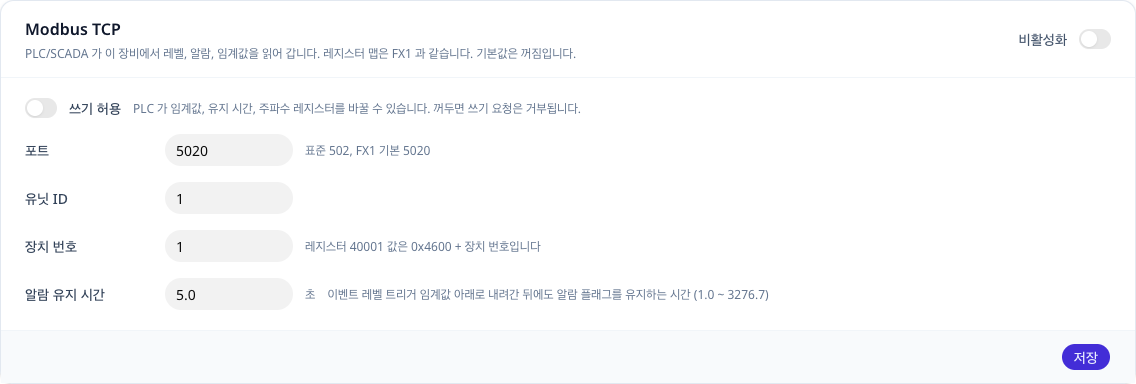
1. Settings
Configure it in the “Modbus TCP” card on the Events → Trigger Conditions tab. Modbus TCP is off by default.
- Enable — off by default
- Port — 5020 by default. The standard port is 502. Choose a port from 1 to 65535; ports used by the device (22, 80, 1935, 3000, 3001, 3002, 8554, 8888, 8889) cannot be used.
- Unit ID — 1 by default (1 to 247)
- Device number — 1 by default (1 to 255). The value of register 40001 is 0x4600 plus the device number.
- Allow writes — off by default. When enabled, the PLC can change the threshold, alarm hold time, and measurement band.
- Alarm hold time — 5.0 seconds by default (1.0 to 3276.7 seconds, in 0.1-second increments)
Only an administrator can change these settings, except for “Alarm hold time.” Settings take effect immediately without restarting the service. Turning Modbus TCP off closes all open connections.
2. Connection rules
- Supported functions — read (0x03), write (0x06, 0x10). Write requests are rejected when “Allow writes” is off.
- Addresses — 0 to 16 or 40001 to 40017
- Simultaneous connections — 10. An 11th connection is closed immediately.
- Idle connections — closed after 60 seconds without a request.
- A request using a different unit ID receives an exception response (0x0B).
3. Register map
There are 17 registers. The map is the same as the FX1 map.
| Address | Name | Format | Read/write | Value |
|---|---|---|---|---|
| 40001 | DEVICE_ID | U16 | Read | 0x4600 + device number (default 0x4601) |
| 40002 | DEVICE_CONNECTED | 0/1 | Read | 1 if a beamforming result was received within the last 3 seconds |
| 40003 ~ 40008 | Year, month, day, hour, minute, second | U16 | Read | Device time (UTC) |
| 40009 | MAX_DBx10 | S16 | Read | Level (dB) of the strongest peak × 10. 0 if there is no peak |
| 40010 | ALARM_FLAG | 0/1 | Read | 1 for alarm, 0 for cleared |
| 40011 | THRESH_DBx10 | S16 | Read/write | Level trigger threshold (dB) × 10. Writable range: 0 to 1200 (0 to 120 dB) |
| 40012 | THRESH_HOLDx10 | U16 | Read/write | Alarm hold time (seconds) × 10. Writable range: 10 to 32767 (1.0 to 3276.7 seconds) |
| 40013 ~ 40014 | FREQ_LOW_HZ | U32 | Read/write | Measurement band lower limit (Hz). The high word comes first |
| 40015 ~ 40016 | FREQ_HIGH_HZ | U32 | Read/write | Measurement band upper limit (Hz) |
| 40017 | WATCH_ID | U16 | Read/write | Fixed at 100. Other values cannot be written |
- Time — the time registers use UTC. They may differ from the device time shown in Device Manager, which applies the time zone.
- MAX_DBx10 — this is the same value the level trigger compares. Sounds below the overlay threshold are not detected as peaks, so they are read as 0.
- ALARM_FLAG — when the level trigger is enabled, this becomes 1 when the level reaches or exceeds the threshold. It returns to 0 after the level falls below the threshold and the alarm hold time elapses. This value is independent of the event cooldown.
- Writing the measurement band — requests are rejected while AI is running. Write the lower and upper limits together within the range of 100 to 98999 Hz.
4-20 mA and RS485
The device has a connector for 4-20 mA and RS485 outputs. For wiring, see the Multicable section of Product Specifications.